

FAQs
CLICK HERE to watch a short video on how to use Trade Connect.
- New Work Orders appear on your Dashboard as NEW
- Urgent Work Orders are shown in red
- Click on a Work Order to see:
- Job address
- Customer contact details
- List of work items
- Room location
- Photos (if available)
- Customer description
- Carlisle instructions
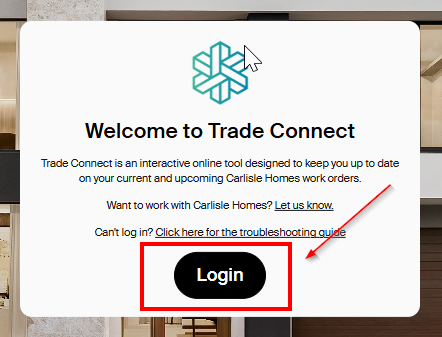
- Go to tradeconnect.com.au
- Enter your email address and password
- Click Log in
NB: You will be asked for multi-factor authentication - we recommend SMS for ease
Firstly, you need to look out for an invitation to Trade Connect – this will be sent from noreply@carlislehomes.com.au (make sure to check your junk folder).
CLICK HERE to watch a short video on how to sign up.
- In the email, click Accept Invitation
- Create a password and click Continue
- Your password must contain:
- Your password must contain:
- Click your preferred your Multi-Factor Method (we recommend SMS for ease)
- Enter your mobile number (staring with 04…) and click Continue
- Enter the unique 6-digit code and click Continue
- Click Accept to authorise the App
If you experience any issues, please contact the Warranty team for assistance.
NOTE: Please use the same email address registered with Carlisle Homes to receive your Work Orders.
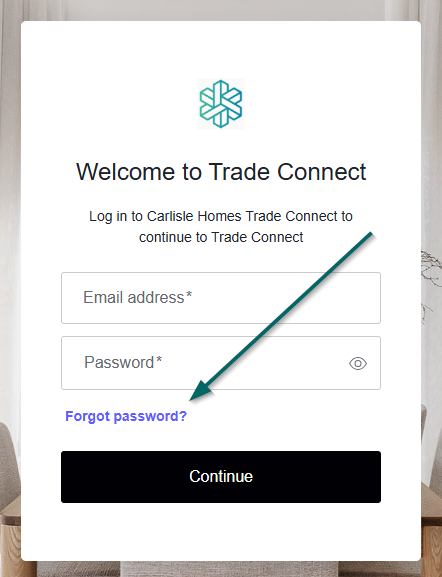
- Go to tradeconnect.com.au
- Click Log in
- Click Forgot password?
- Enter your registered email address
- Click Continue
- Check your email and click Change your password
- Enter your new password
No - notes added to a Work Order or case in Trade Connect are visible to the Warranty team only and are used for internal communication and job tracking.
Customers cannot view these notes through Trade Connect.
However, please be aware that if a customer formally requests access to their project information, these records may be made available as part of that request. For this reason, we recommend keeping communication clear, professional and factual.
- Open the Work Order
- Contact the customer to agree on a date and time
- If on mobile, you can call or SMS the customer directly from the portal
- Click Schedule
- Enter the date, time, and estimated duration
- Click Save
TIP: You can download the calendar invitation and add this to your diary
Important
- The booking is visible to you, the Warranty team, and the customer (via Carlisle Connect)
- The customer will receive:
- An SMS when booked
- A reminder SMS 48 hours before the appointment
NOTE: This SMS will include booking details and your contact information should they need to reschedule.
First, discuss the change with the customer! Once agreed:
- Open the Work Order
- Click Reschedule
- Select the new date, time, and duration
- Choose the reason:
- Customer initiated
- Vendor initiated
- Extra booking
- Click Save
The updated booking will be visible to the Warranty team and the customer.
Yes, you can! Simply open the Work Order and click the Calendar icon.
This downloads a calendar file (ICS) - open the file in your calendar app (Outlook, Google Calendar, etc.) and Save.
- Open the Work Order
- Click on the relevant Case
- Update the status:
- In Progress – if work has started but is not finished
- Complete – when the work is finished
- Use the Notes section to add reminders eg “Plastered today – need to paint next visit”
Remember: If you need to return, make sure you add a new booking.
- Mark each Case as Complete
- Once all cases are complete, the Work Order will automatically move to the Completed page
When all jobs on a Work Order have been marked complete, the Work Order will be moved from your Dashboard to the Completed page. This page can be found via the menu at the top of each page.
Go to the Completed page in Trade Connect
At Carlisle Homes, the safety and wellbeing of our customers, staff and trades is extremely important. When attending occupied homes for service or warranty works, all trades are expected to follow the below guidelines to help ensure a safe, respectful and professional experience for our customers.
1. Ensure all accessways and work areas remain safe and free from unnecessary hazards while works are being completed.
2. Confirm an adult aged 18 years or over is present at the property prior to commencing works. If no adult is present, works must not proceed and the office should be notified.
3. Be mindful of children within the home and ensure work areas always remain safe.
4. Do not enter the property if pets are unsecured or creating a safety concern. Please request the customer secure pets before commencing works.
5. Appropriate footwear must be always worn for safety purposes. Protective boot covers should be used where required, and flooring should be protected were reasonably possible.
6. Treat the customer’s home, belongings and personal space with care and respect always.
7. Photos may only be taken for work-related purposes, including assessment, reporting, and completion records. Avoid capturing personal or sensitive items where possible.
8. Customers should remain onsite while works are underway. If a customer leaves the property unexpectedly, contact Carlisle Homes for further direction.
9. Where furniture or belongings restrict access to the work area, request assistance from the customer where appropriate. Trades should not move heavy or valuable items unless necessary and safe to do so.
10. If a property presents unsafe, unhygienic, or hazardous conditions, contact Carlisle Homes prior to proceeding with works.
11. All interactions with customers and occupants must remain professional, respectful, and courteous always.
12. If you are feeling unwell or experiencing contagious symptoms, notify Carlisle Homes prior to attending the property.
13. Always maintain a safe working environment and ensure customers maintain an appropriate distance from active work areas.